Hero background

Text to Image

Turn your ideas into images with MagicLight AI. Describe what you want to create, choose an image model, and generate visuals in seconds. No design skills needed.

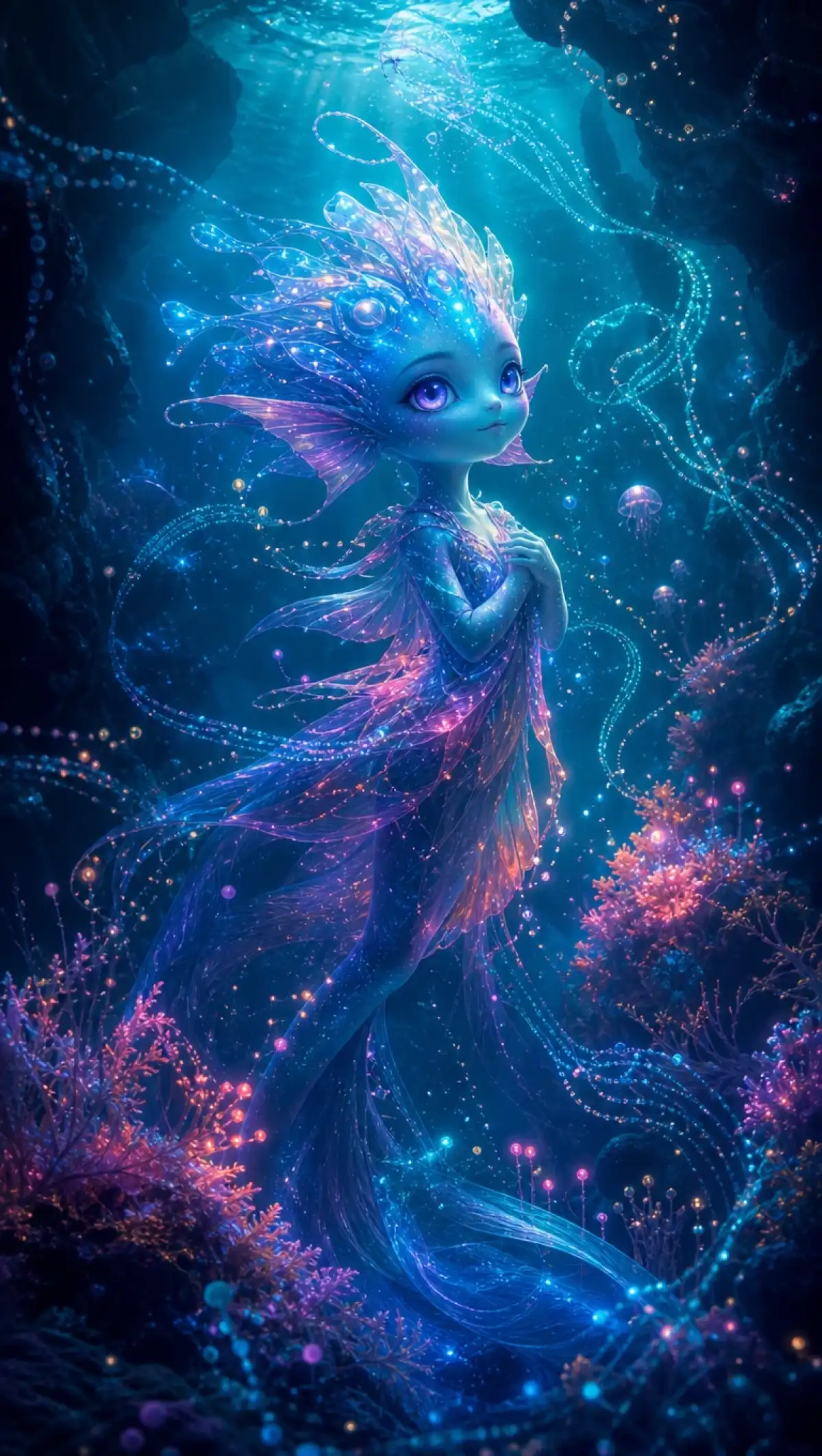
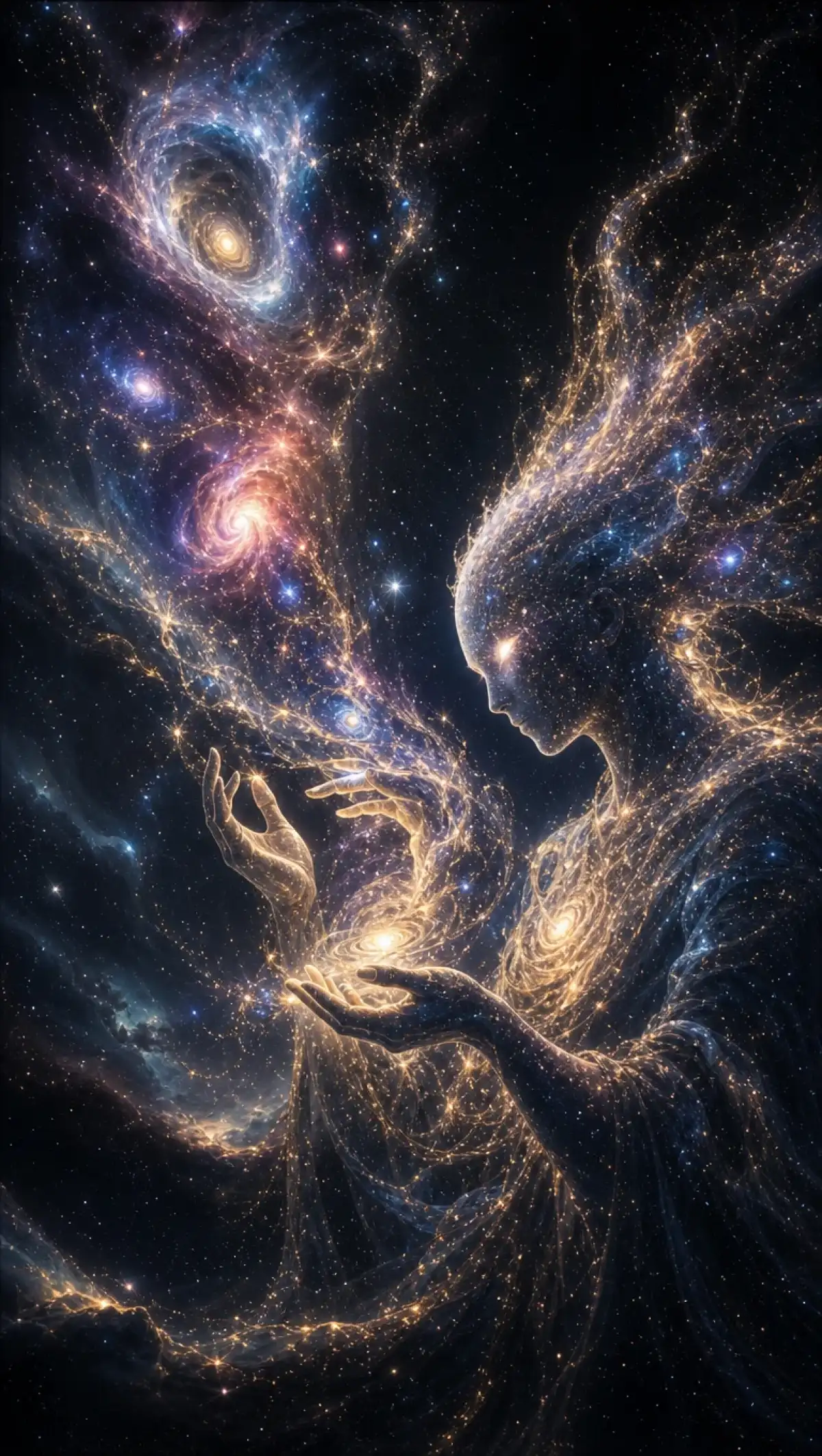
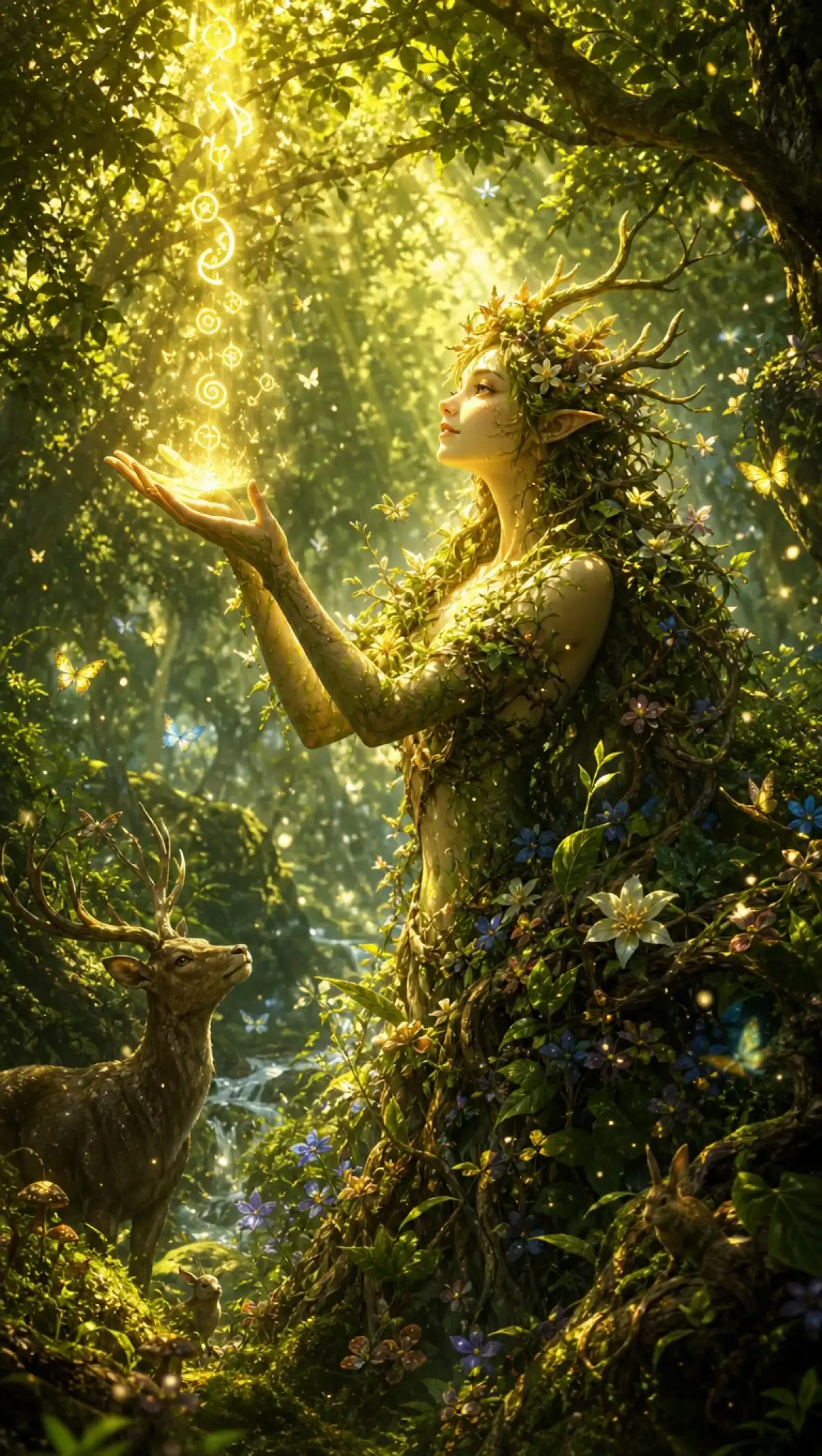
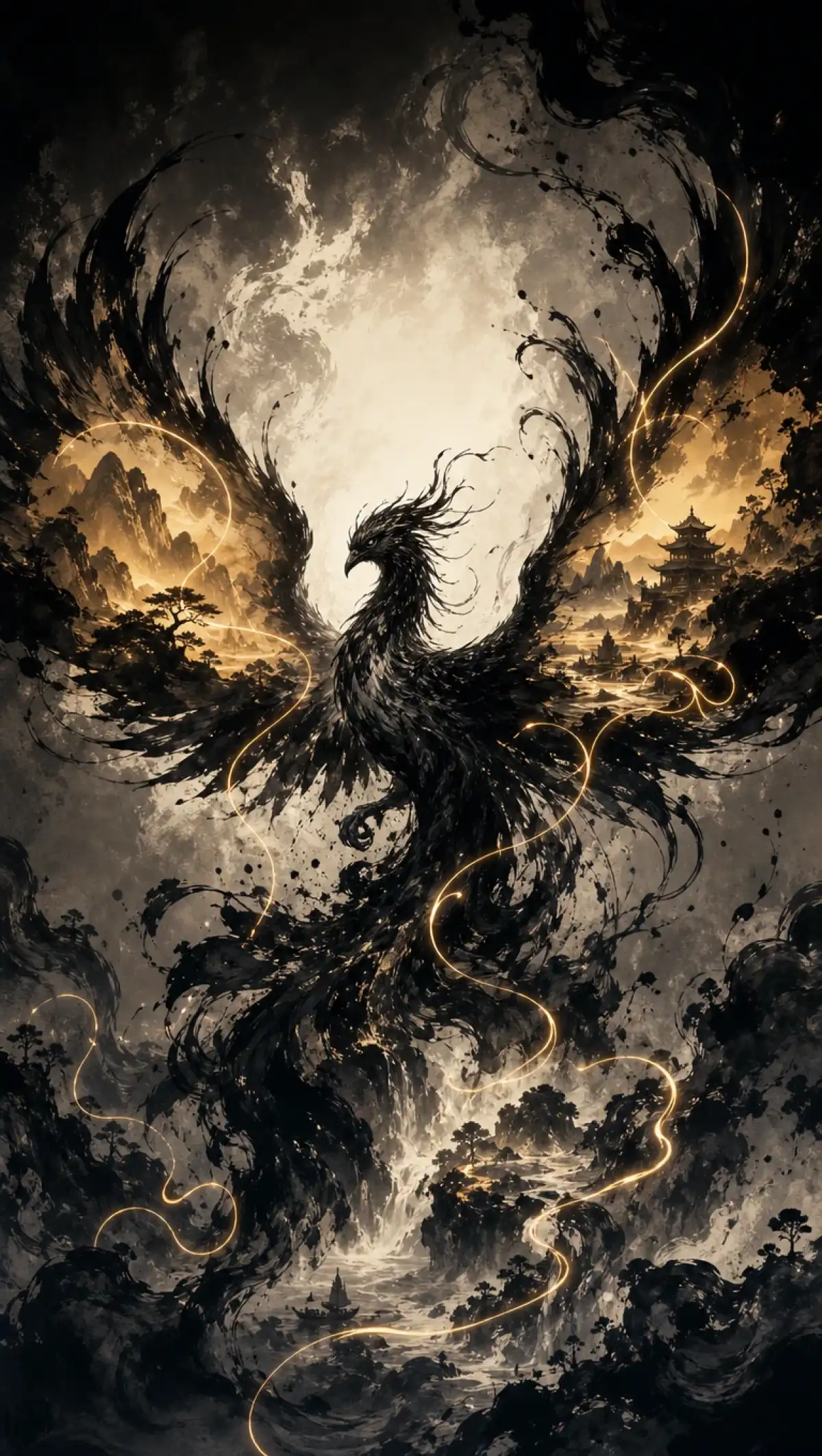
Text to image generated artwork preview
AI image generated from text prompt
Text prompt image example
AI text to image example
Text to image sample 2
Text to image sample 3
Text to image sample 4
Text to image sample 5
Text to image generated artwork preview
AI image generated from text prompt
Text prompt image example
AI text to image example
Text to image sample 2
Text to image sample 3
Text to image sample 4
Text to image sample 5

Explore the Magiclight AI Text to Image Generator Features

Fast creative work needs clear controls and a short path from words to pictures. Text to image conversion in Magiclight AI keeps both in one dedicated mode.
Create Images from Text for Free
Text to image decoration

6 AI Models For Different Styles

One menu holds all 6 models, including the Nano Banana pair, the GPT Image family, and Seedream 5.0 Pro. Teams can match the model to get the final look a client asked for.

500 Characters for the Creative Brief

Subject, composition, lens, palette, and mood all fit into one prompt, along with the most important elements. A structured 500-character prompt keeps a long run of campaign images on message.

4 Frame Shapes Chosen First

Pick wide for banners and tall for stories before you generate anything. Choose 4:3 for print pieces and square for feed posts within Magiclight AI. Setting the canvas first keeps each placement in the right shape.

3 File Formats Up to 20MB

JPG, PNG, and WEBP files are accepted as references for a brief. A large source file goes in at full size without any resizing. Each file can be up to 20MB before it is rejected.

Who Can Use the Magiclight AI Text-to-Image Tool
A brief is easier to judge once it has a picture. Text to image in Magiclight AI helps agencies and studios, editors, and designers show an idea early.
For Ad Agencies
For Ad Agencies
Pitch 3 campaign directions from one 500-character brief.
Compare Seedream 5.0 Pro and Nano Banana 2.1 on the same brief.
Pick 16:9 for a banner and 9:16 for a Story before you generate.
For Game Studios
For Game Studios
Keep a hero’s design steady with up to 10 reference images.
Use Image to Video with a generated character for a trailer animation.
Upload a 20MB concept sketch as a reference for the art team.
For Editorial Teams
For Editorial Teams
Try Text to Image with no files to picture an abstract topic.
Follow the 500-character prompt to specify a headline image.
Download the best header image for the editor to review.
For Product Designers
Use Frame to Video to morph a product between two colorways.
Show the concept in motion with Image to Video for the client.
Employ Reference Image to Image to restyle a rough product sketch.
Why Choose
Magiclight AI Text to Image
A still image is often only the first stage of a larger project. Magiclight AI Text to Image tool carries that picture into later stages without a new tool.
Revision Rounds with References
Bring a chosen concept back as a reference and request one precise change. Up to 10 references can guide the next version at once. Revisions build on approved work instead of starting over.
Frame to Video for Transitions
Use 2 generated images as the first and last frames of a clip. A product can move between colorways in a single smooth shot. Pick 2 images that share the same angle.
Image to Video for Client Motion
Send an approved concept into Image to Video from the same account. A client can see the idea in motion without a separate production. Check the video settings for available models and lengths.
Create Longer Videos With Story to Video
Take your generated artwork beyond short animations using Magiclight AI's Story to Video feature. Enter a script of up to 12,000 characters and choose from 16 story models.
Create Images Anywhere With the iPhone App
Turn creative ideas into visuals wherever inspiration strikes using the Magiclight AI iPhone app. Generate image concepts while traveling, attending meetings, or discussing projects with clients.
Create Images for Commercial Projects
Use Magiclight AI-generated images for advertising campaigns, websites, and client presentations. Paid plans with commercial rights support creating visuals for professional projects.

How to Use Text to Image in Magiclight AI

Text to Image takes 3 steps from brief to shortlist in Magiclight AI. Writing the brief like an art director in step two keeps every result close to the target.

1.

Step 1. Open the Text-to-Image Mode

Head to the Toolbox and open the Image tab. Keep the words-only mode selected because it needs no files to begin. The model and frame settings appear beside the prompt box.

2.

Step 2. Write the Creative Brief

Describe the subject, composition, palette, lighting, and mood within 500 characters. Put the most important element first so it leads the picture.

3.

Step 3. Pick Engine, Frame, and Batch

Select the AI model that fits the brief and choose the canvas for the final placement. Click Create Image and review what comes back. Download the shortlist for the team to review.

FAQs on Text to Image

What is text to image?

Text to Image creates a picture from a written description of the scene. In Magiclight AI, it is a dedicated mode in the Image tab with six models to choose from. No source file is needed to start.

Which AI model should I pick for my brief?

Try 2 models on the same brief and compare the results side by side. Magiclight AI keeps 6 in its menu across the Nano Banana, GPT Image, and Seedream families.

How detailed should a prompt be in Magiclight AI?

Use as much of the 500-character limit as the brief needs. Concrete details such as lens, palette, and composition give the model a clearer target than vague words.

Can a text-to-image result be turned into a video?

Yes, because you can send it into Image to Video or Frame to Video in the same account. A generated character can also start a longer story in Story to Video. Check the video settings for what each tool allows.

Can agencies use the images for clients?

Yes, if the work was made on a plan that grants commercial rights. Confirm any client or platform rules on AI visuals before you deliver the images. Keep the brief and the approvals on file.

How do I get started with Magiclight Text to Image?

Create an account and open the Image tab from the Toolbox. Write your first brief in the Text to Image mode and compare 2 models. Start with a short test before the real campaign.


Create Professional Images from Text With Magiclight AI

A strong brief deserves a picture before the meeting starts. Try Text to Image in Magiclight AI and see what the idea looks like on screen.